THEIA II sport modes, GPS and return to start
9-Sports mode
Important: From any of the available sports modes, a long press (4 seconds) on the bottom button of the watch returns you to the starting point recorded.
About the GPS signal: it is recommended to active the AGPS mode from your APP often. (Each 3 days could be useful) . It will help your GPS to capture the signal easier and quicker. In « open sky » condition, around 30 seconds should be necessary to get the signal. However, in not optimal condition as cloudy, rain, close to a cliff, the signal could take a few minutes to be recovered. In any case, you can start your activity without the signal, as soon as the watch get it, the track will be recorded.
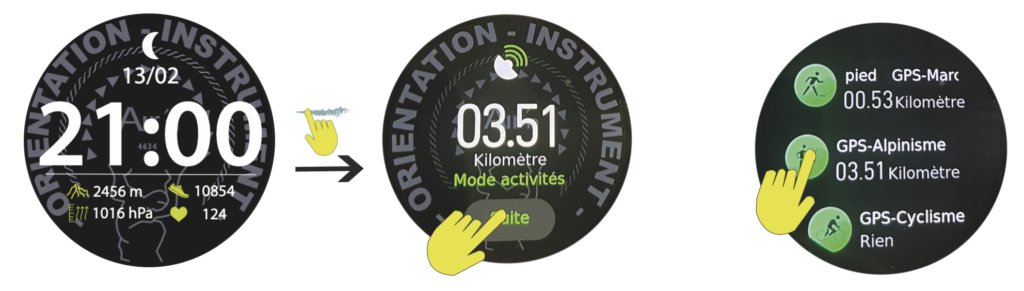
From the “home” page, sweep the dial to the left to access the activities page. Click on the “next” icon if you have already registered an activity.
You can also access this page by briefly pressing the bottom button.
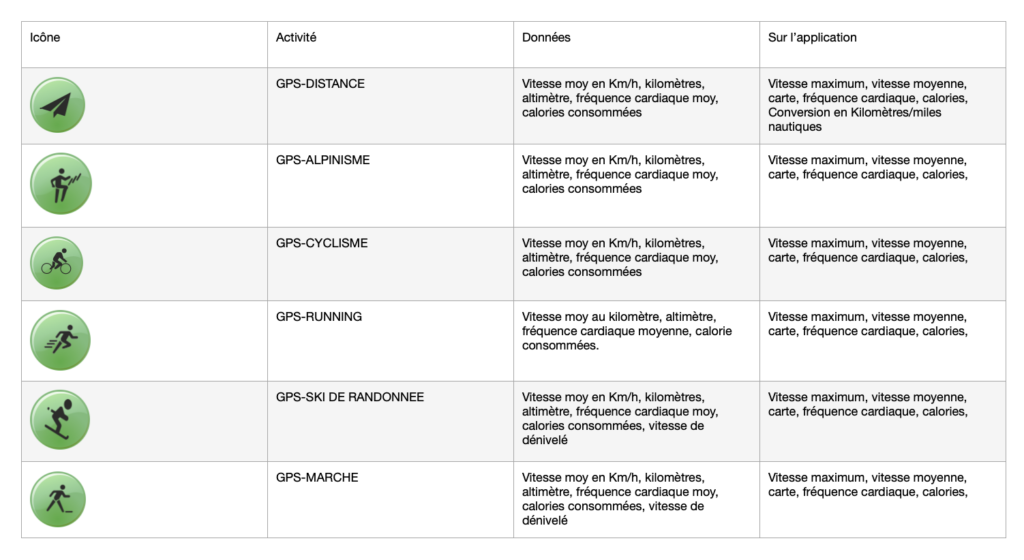
There are 6 modes: Walking, Mountaineering, Cycling, Ski touring, Running, Distance. Each of these activities has its own calculation algorithm.
Choose a mode by clicking on it.
A window with a launch arrow appears. You can set time , distance, calorie targets or enter a route generated by the application from your repertoire.
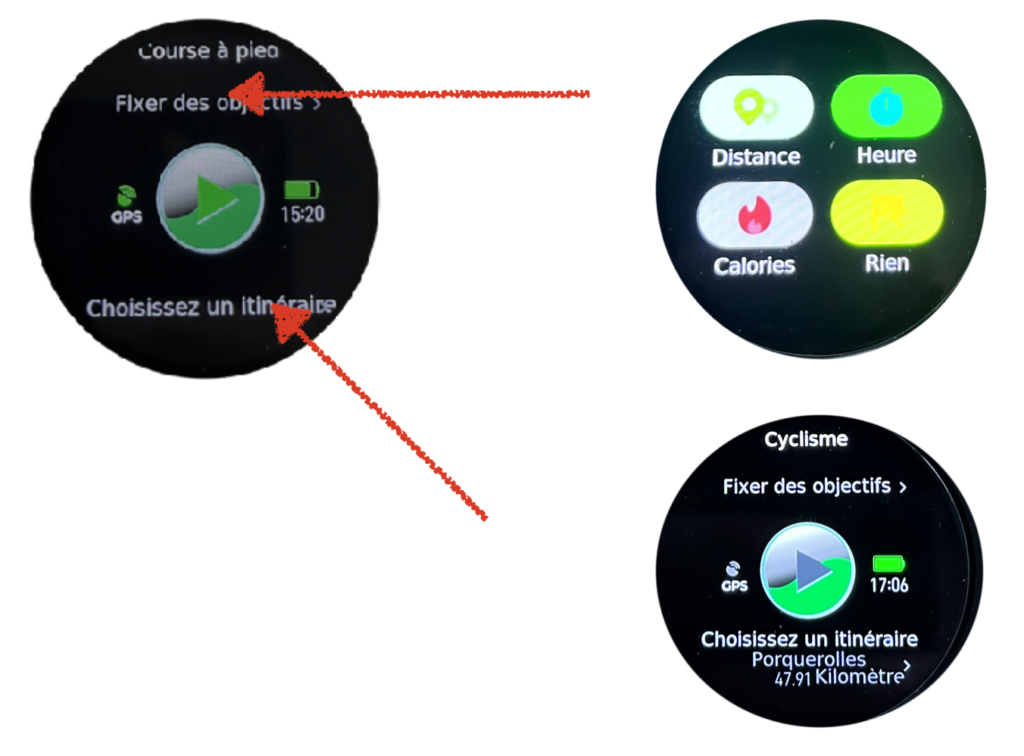
As soon as the GPS signal is found, the icon stops flashing and appears permanently.
You can then click on the arrow and start your activity.
In GPS activity mode, the watch records your position to determine a route.
You also have access to :
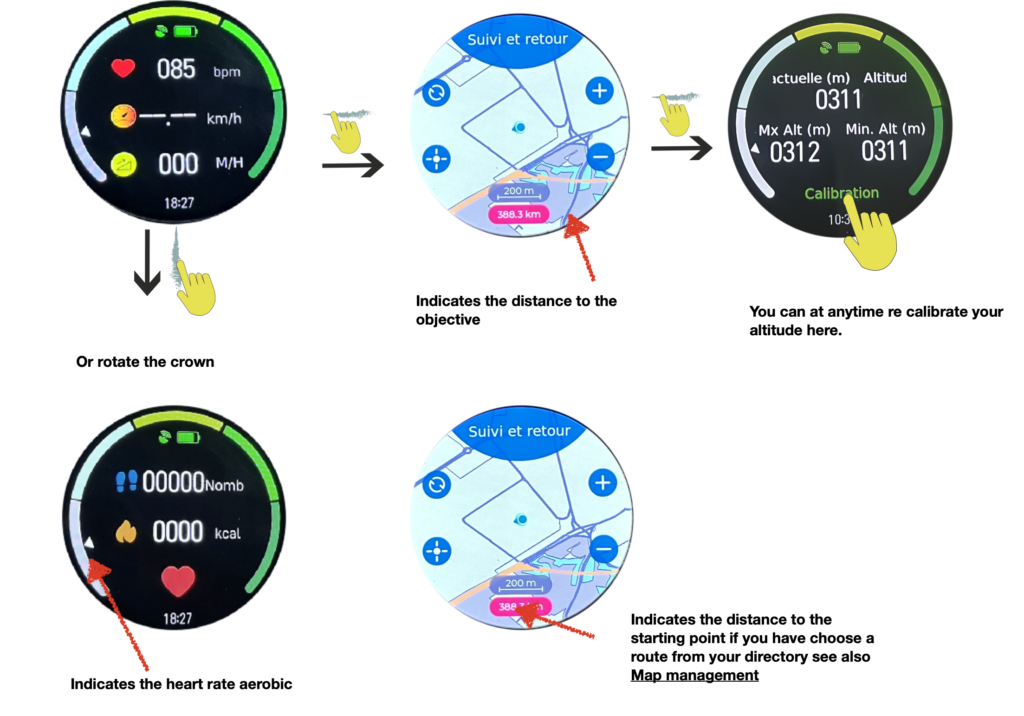
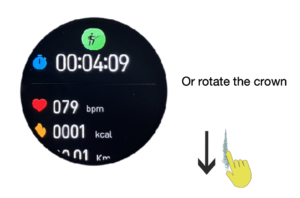
Ground speed, heart rate, number of steps, ascent rate, stopwatch. By swiping right, you can access the map to determine your position. Swipe right to access your altimeter, minimum altitude and maximum altitude reached.
The gradient circle shows your heart rate in relation to your activity.
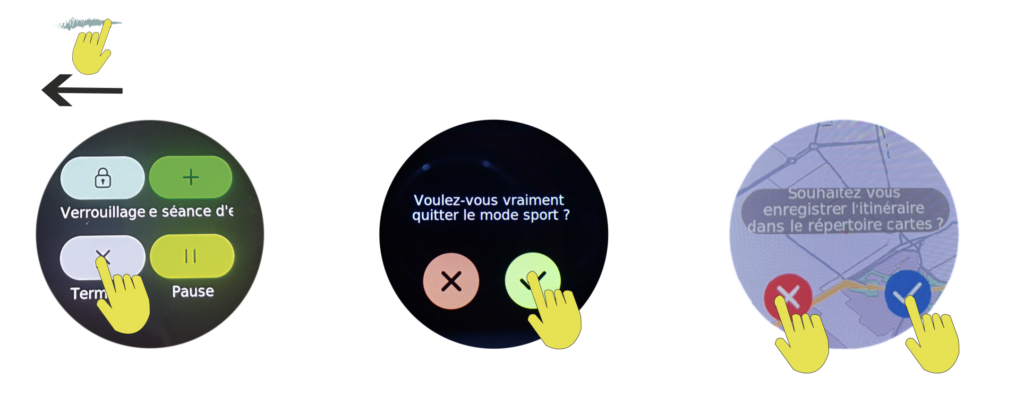
Swipe right to access the “end of activity” page. This page can also be accessed via the bottom button. Once the finish icon has been activated, the watch suggests that you save the trail in your map directory. You can choose yes or not.
Note: if you do not save the route, it will still be listed and displayed in your activities on the app.
It then gives you a summary of your activity.
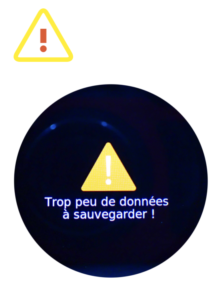
Note:If you have performed an activity too quickly, this message may appear. No activity is recorded.
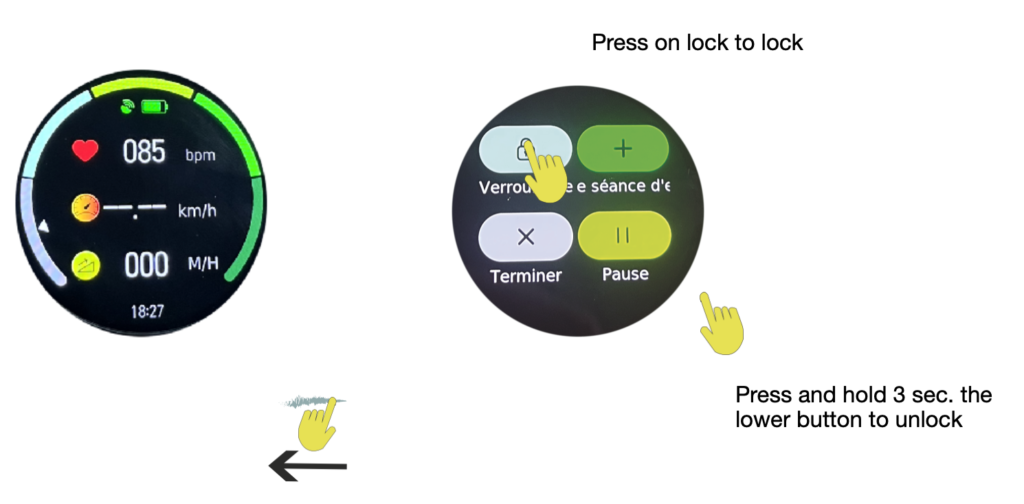
Recommendation: if you are using your watch in a humid environment, for example in heavy rain, or for any nautical activity, we recommend blocking your dial by pressing the corresponding icon. The touchscreen is sensitive to water pressure and could give a stop-recording command to your watch, which would no longer be able to record data.
To lock the screen, once you're in your activity, press the bottom button, then click on the corresponding icon on the screen. To unlock the screen, press and hold the bottom button for 3 seconds.
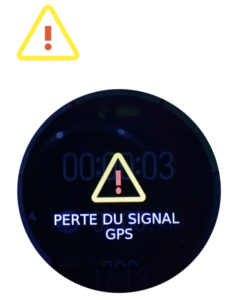
If you lose the GPS signal before or during the activity, this message will appear. In this case, the track history will draw a straight line between the point where the signal was lost and the point where it was recovered. If you are using the return to start mode, you should be careful as it is not certain that the track will guide you back to your starting point.